OpenClaw를 5번 재설치하고 나서야 초보자가 그대로 베껴야 할 설정을 전부 적어뒀다
I reinstalled OpenClaw five times before I finally confirmed one thing:
What beginners waste most is not the installation time itself, but getting repeatedly tortured by a pile of configurations that “look like they’re already working” but are actually guaranteed to explode sooner or later.
The first time you install it, you think that as long as the UI opens and the bot can reply, you’re done. Usually, that’s not the truth.
The real traps tend to show up later:
pnpmis clearly installed, but the daemon still can’t find it;- the Feishu bot is clearly connected, but multi-agent routing is actually a mess;
- QMD looks like it’s syncing automatically, but it has been silently failing the whole time;
- ACP looks correctly configured, but your coder never actually runs on Codex;
This is not a “translated version of the official docs,” and it’s not a “I installed it once so now I’ll teach everyone else” tutorial either. It’s a pitfall postmortem startup plan I put together after reinstalling OpenClaw five times on a brand-new Mac mini.
What it solves is not “how to light up OpenClaw,” but something more important:
How to turn it into an environment that runs stably over the long term, instead of something that works today and blows up tomorrow.
The 5 High-Frequency Traps I Confirmed After Reinstalling 5 Times
Let’s put the most valuable part first.
If you only want to know why so many people “clearly installed it, but it still keeps breaking,” the answer is basically in these five points:
-
A correct PATH in your shell does not mean the daemon’s PATH is also correct
Just becausepnpm,node, andqmdrun in your terminal does not mean they also run inside LaunchAgent. -
Installing a tool does not mean OpenClaw has the right permissions to use it
Some versions ship with more conservative defaults. If you don’t patch the config, it looks usable, but the moment you call the tool it becomes half-dead. -
QMD not throwing an error does not mean it is actually syncing
Many watcher scripts pretend they succeeded. Even after failing, they still log “sync complete.” That’s nasty. -
Being able to create multiple agents does not mean messages are routed correctly
In a multi-bot Feishu setup,accountsis only the beginning. What actually decides message routing isbindings. -
A coder that seems connected to Codex does not mean it is really running on ACP
A lot of people finish the config and think “this should be good now.” In reality, the runtime was never switched properly. It just looks right by name.
If you avoid these five traps up front, you can cut at least half of the pointless thrashing that comes later.
The setup below is organized around exactly those traps.
0. If You’re Going to Raise a Lobster (OpenClaw), Pick a Mac mini
The core reasons a Mac mini is the better machine for “raising a lobster” are simple:
1. Unified memory architecture
Apple Silicon Macs use a Unified Memory architecture, where system memory and video memory are shared. If you want to run large language models (LLMs) locally for inference later on (we’ll use open-source models to support QMD), enough VRAM-equivalent memory is the basic condition for acceptable speed.
2. Ecosystem integration and automation convenience
Cloud vendors are all rolling out cloud-based “raise your lobster” plans, but compared with a VPS, a Mac mini has natural advantages for everyday automation tasks:
-
Bypassing detection: Browser automation running on a local residential IP is less likely to be flagged as a bot than a data-center IP on a VPS.
-
Multimedia handling: Processing local files, managing calendars, and integrating desktop apps such as Claude Code or Codex is much simpler.
3. Lower barrier and better stability
- Gentler learning curve: For non-developers, setting up dashboards and troubleshooting network permissions on a local Mac is far more intuitive than doing the same on a VPS.
- Silent and efficient: A Mac mini is tiny, quiet, and uses very little power, which makes it ideal as a 24/7 “lobster server.”
1. Stabilize the Foundation First: Command Line and Package Management
System version
Once you get the Mac mini, upgrade macOS to the latest Tahoe release first, and turn on automatic updates.
- ✅System Settings → General → Software Update → Automatic Updates
Otherwise, when the machine sits at home and you access it remotely, OpenClaw can easily end up in a state where “the body is still there, but the soul is gone.” Feishu will not wake it up.
Power settings
In System Settings → Energy, it is recommended to turn on all three switches below:
- ✅Prevent automatic sleeping when the display is off
- ✅Wake for network access
- ✅Start up automatically after a power failure
If you don’t, once the machine is sitting at home and you use it remotely, OpenClaw is very likely to look alive while actually being dead. Feishu won’t be able to wake it.
Install Tailscale
Tailscale securely connects devices in different network environments—home, office, phone—into the same virtual LAN. When you’re thousands of miles away and OpenClaw dies, you can still use Tailscale plus screen sharing from another device to access the machine running OpenClaw.
the Tailscale setup itself is simple. The key parts are:
- ✅Enable login at startup,
- ✅Turn on Screen Sharing on the Mac mini in System Settings → General → Sharing.
- ✅Record the Mac mini’s virtual Tailscale address
Install Xcode Command Line Tools
Xcode Command Line Tools is Apple’s official low-level developer package. It fills in core UNIX tools not preinstalled by default in macOS, including the git, make, and clang compiler toolchain. It is the foundation of the Mac development environment and provides the indispensable low-level build capability you need later for compiling source code or running advanced package managers.
xcode-select --install# Or type “git” in the terminal and Xcode Command Line Tools will be installed automaticallyInstall Homebrew
Homebrew is the de facto package manager on macOS. It lets you install, update, and remove all kinds of development software and dependencies through minimal terminal commands. In the background, it handles complex dependency relationships and manages system symlinks in a unified way, saving you from manually downloading installers and configuring low-level paths.
/bin/bash -c "$(curl -fsSL https://raw.githubusercontent.com/Homebrew/install/HEAD/install.sh)"Configure the Homebrew environment variables
echo 'eval "$(/opt/homebrew/bin/brew shellenv)"' >> ~/.zprofileeval "$(/opt/homebrew/bin/brew shellenv)"2. Nail Down the Node Environment for Good
With content-addressable storage (CAS), pnpm uses hard links to ensure that the same dependency version exists only once on the physical disk globally. That saves SSD space on your Mac and improves install speed. More importantly, pnpm’s strict symlinked dependency tree completely avoids the “phantom dependency” problem caused by npm’s flattened layout. It forces code to access only the packages explicitly declared in package.json, which protects build safety and environment cleanliness at the foundation level. So I strongly recommend pnpm over npm as the package manager.
Install fnm and enable automatic switching
Use fnm, built in Rust, as your version manager. It gives you seamless, fast, and automatic Node.js switching across projects and eliminates global version conflicts.
brew install fnmecho 'eval "$(fnm env --use-on-cd --shell zsh)"' >> ~/.zshrcsource ~/.zshrcInstall Node LTS and make it the default
Lock the Node.js Long-Term Support version (LTS) as the global default environment so low-level daemons such as launchd and your day-to-day development tasks both get maximum stability.
fnm install --ltsfnm default lts-latestEnable Corepack and activate pnpm
Enable Corepack, which is built into Node.js natively, to bypass the bloated old habit of installing package managers globally through npm. This is the cleanest, most official, and most controllable way to activate and manage your pnpm environment.
corepack enablecorepack prepare pnpm@latest --activateVerify the key binary paths
which nodewhich pnpmnode -vpnpm -vNon-interactive environments such as launchd depend on absolute paths. When you later write LaunchAgent files, use the exact paths returned by which above.
pnpm initialization and alias configuration
Run system-level initialization and deploy strict shell aliases as a hard guardrail against accidentally using npm or yarn. If you want pnpm to manage global binaries properly and force yourself into a pnpm-only workflow, run pnpm setup first, then add a stricter .zshrc configuration.
Steps
- First run:
pnpm setup- Then add the following block to
~/.zshrc:
# ============================================================# ~/.zshrc (pnpm-only workflow, macOS)# ============================================================
# pnpmexport PNPM_HOME="/Users/a66/Library/pnpm"case ":$PATH:" in  *":$PNPM_HOME:"*) ;;  *) export PATH="$PNPM_HOME:$PATH" ;;esac
# Hard-stop / guidance for package managersalias npm="echo '⚠️ 请使用 pnpm!'"alias yarn="echo '⚠️ 请使用 pnpm!'"alias pnpx="echo '⚠️ 请使用 pnpm dlx!'"
unalias npx 2>/dev/null
npx() {  if [[ "$1" == "-y" || "$1" == "--yes" ]]; then    shift  fi  pnpm dlx "$@"}
# Shortcutsalias p="pnpm"alias px="pnpm dlx"alias pe="pnpm exec"
# Common npm replacementsalias ni="pnpm install"alias nia="pnpm add"alias nid="pnpm add -D"alias nig="pnpm add -g"alias nr="pnpm run"alias nx="pnpm exec"alias nrs="pnpm -r run"alias nu="pnpm update"alias nrm="pnpm remove"alias na="pnpm audit"alias no="pnpm outdated"alias nl="pnpm list"
npmci() { pnpm install --frozen-lockfile "$@"; }create() { pnpm dlx "$@"; }
# fnmeval "$(fnm env --use-on-cd)"- Apply it:
source ~/.zshrc3. Configure GitHub
You can follow GitHub’s official doc: Generating a new SSH key and adding it to the ssh-agent.
Before generating an SSH key, configure Git’s global identity first, otherwise your commit history will look ugly.
git config --global user.name "your_name"git config --global user.email "your_email@example.com"First confirm you are using the system SSH
which sshGenerate the key
ssh-keygen -t ed25519 -C "your_email@example.com"Configure ~/.ssh/config
Host *  AddKeysToAgent yes  UseKeychain yes
Host github.com  HostName ssh.github.com  Port 443  User git  IdentityFile ~/.ssh/id_ed25519  ProxyCommand nc -X 5 -x 127.0.0.1:7897 %h %p
If you do not use a local proxy, simply delete the ProxyCommand line.
Upload the public key and verify
pbcopy < ~/.ssh/id_ed25519.pubssh -T git@github.com4. Get OpenClaw Running
Prepare the large models
OpenClaw needs to call large models to execute tasks. The stronger the model, the stronger OpenClaw becomes. Closed models such as ChatGPT and Gemini should be your first choice, while open models like Kimi and Qwen are also usable. If you choose ChatGPT or Gemini, install Codex CLI or Gemini CLI first, then bind them to OpenClaw through OAuth later.
## Installbrew install codexbrew install gemini-cli## Sign incodexgeminiInstall OpenClaw
# Install the latest version of the openclaw CLI globallypnpm add -g openclaw@latest
# Allow global packages to run the scripts required for installation (pnpm security allowlist)pnpm approve-builds -g
# Run onboarding and install the background daemon for openclaw (for auto-start)openclaw onboard --install-daemon
Complete the installation by following the onboarding flow.
Critical settings after first startup
- The first time you open OpenClaw in the browser: use the tokenized URL returned by onboarding.
- After that, you can visit it through:
http://127.0.0.1:18789/
Auto-update configuration
If you want OpenClaw to update automatically, add this to the config:
{ "update": { "channel": "stable", "auto": { "enabled": true, "stableDelayHours": 6, "stableJitterHours": 12, "betaCheckIntervalHours": 1 } }}You can also keep upgrading manually:
pnpm add -g openclaw@latestRecommended model fallback configuration
{ "agents": { "defaults": { "model": { "primary": "openai-codex/gpt-5.4", "fallbacks": [ "google/gemini-3-flash-preview" ] } } }}Giving OpenClaw more personality
If you want OpenClaw to sound like a human instead of radiating generic AI sludge, send it the text below and have it rewrite SOUL.md for you.
Read your SOUL.md. Now rewrite it with these changes:
1. You have opinions now. Strong ones. Stop hedging everything with 'it depends' — commit to a take.2. Delete every rule that sounds corporate. If it could appear in an employee handbook, it doesn't belong here.3. Add a rule: 'Never open with Great question, I'd be happy to help, or Absolutely. Just answer.'4. Brevity is mandatory. If the answer fits in one sentence, one sentence is what I get.5. Humor is allowed. Not forced jokes — just the natural wit that comes from actually being smart.6. You can call things out. If I'm about to do something dumb, say so. Charm over cruelty, but don't sugarcoat.7. Swearing is allowed when it lands. Not constant, not performative — just real. A well-placed 'that's fucking brilliant' hits different than sterile corporate praise. Don't force it. Don't overdo it. But if a situation calls for a 'holy shit' — say holy shit.8. Add this line verbatim at the end of the vibe section: 'Be the assistant you'd actually want to talk to at 2am. Not a corporate drone. Not a sycophant. Just... good.'
Save the new SOUL.md. Welcome to having a personality.- Put the tool permissions in the right place
If a newly added agent’s tools do not work properly by default, you can add this to openclaw.json:
{ "tools": { "profile": "full", "sessions": { "visibility": "all" } }}5. Connect the Official Feishu Plugin
Feishu has already released an official OpenClaw Feishu plugin. Compared with third-party plugins, it has broader permissions, better stability, and tighter integration with the Feishu ecosystem. If Feishu (Lark) is already your main interaction channel with OpenClaw, go straight to the official option.
PS: personal Feishu accounts do not support Feishu bots. You need a corporate account that can access the Feishu Open Platform to configure one. Log in to the Feishu Open Platform and check whether you can create a bot.
Authorization
After finishing the setup according to the official doc, send this message to the bot in the Feishu client: I want to grant all user permissions to authorize Feishu access.
Plugin updates
The Feishu plugin just launched and is evolving fast, so keep it updated regularly.
npx -y https://sf3-cn.feishucdn.com/obj/open-platform-opendoc/879b06f872058309ef70f49bcd38a71f_Pr8pNIJ9J9.tgz updateEnable streaming output
openclaw config set channels.feishu.streaming trueopenclaw config set channels.feishu.footer.status trueReply in groups without requiring @mentions
{ "channels": { "feishu": { "requireMention": false } }}Thread mode
If you want the bot to have an independent context inside topic-based group chats and support parallel multi-tasking:
openclaw config set channels.feishu.threadSession trueOne Feishu bot per agent
If you need multiple agents (main / coach / secretary / ...) and each agent corresponds to one independent Feishu app, use bindings for deterministic routing: feishu + accountId -> specific agent
Add an agent
openclaw agents add coachIf you need other agents too, you can also do this:
openclaw agents add <agentId> --workspace ~/.openclaw/workspace-<agentId>Convert Feishu from a single-account structure to a multi-account structure
Originally it might look like this:
{ "channels": { "feishu": { "appId": "...", "appSecret": "..." } }}Upgrade it to this:
{ "channels": { "feishu": { "enabled": true, "connectionMode": "websocket", "dmPolicy": "pairing", "groupPolicy": "open", "accounts": { "main": { "appId": "cli_xxx", "appSecret": "xxx" }, "coach": { "appId": "cli_xxx", "appSecret": "xxx" } } } }}Configure bindings (the core part)
[ { "agentId": "main", "match": { "channel": "feishu", "accountId": "main" } }, { "agentId": "coach", "match": { "channel": "feishu", "accountId": "coach" } }]Restart the gateway to apply changes
openclaw gateway restartVerify routing
openclaw channels statusopenclaw agents bindingsopenclaw status --deepCommon traps in multi-agent + multi-Feishu-bot mode
- Trap 1: You configured
accounts, but notbindings
Result: messages still go everywhere randomly.
- Trap 2: The
accountIdnames don’t match
For example, you have accounts.coach, but write coaching in the binding. It is a stupid mistake, but an extremely common one.
- Trap 3: The old single-account
appId / appSecretis still hanging around
In multi-account mode, write everything under channels.feishu.accounts.*. Don’t mix the two structures.
- Trap 4: The Feishu app was never published or its permissions never took effect
Your config is correct, but the bot still will not reply. In most cases, that means you never published the new Feishu app version in the backend. After updating the bot config, remember to publish and submit it for review.
6. Configure the QMD Local Memory System
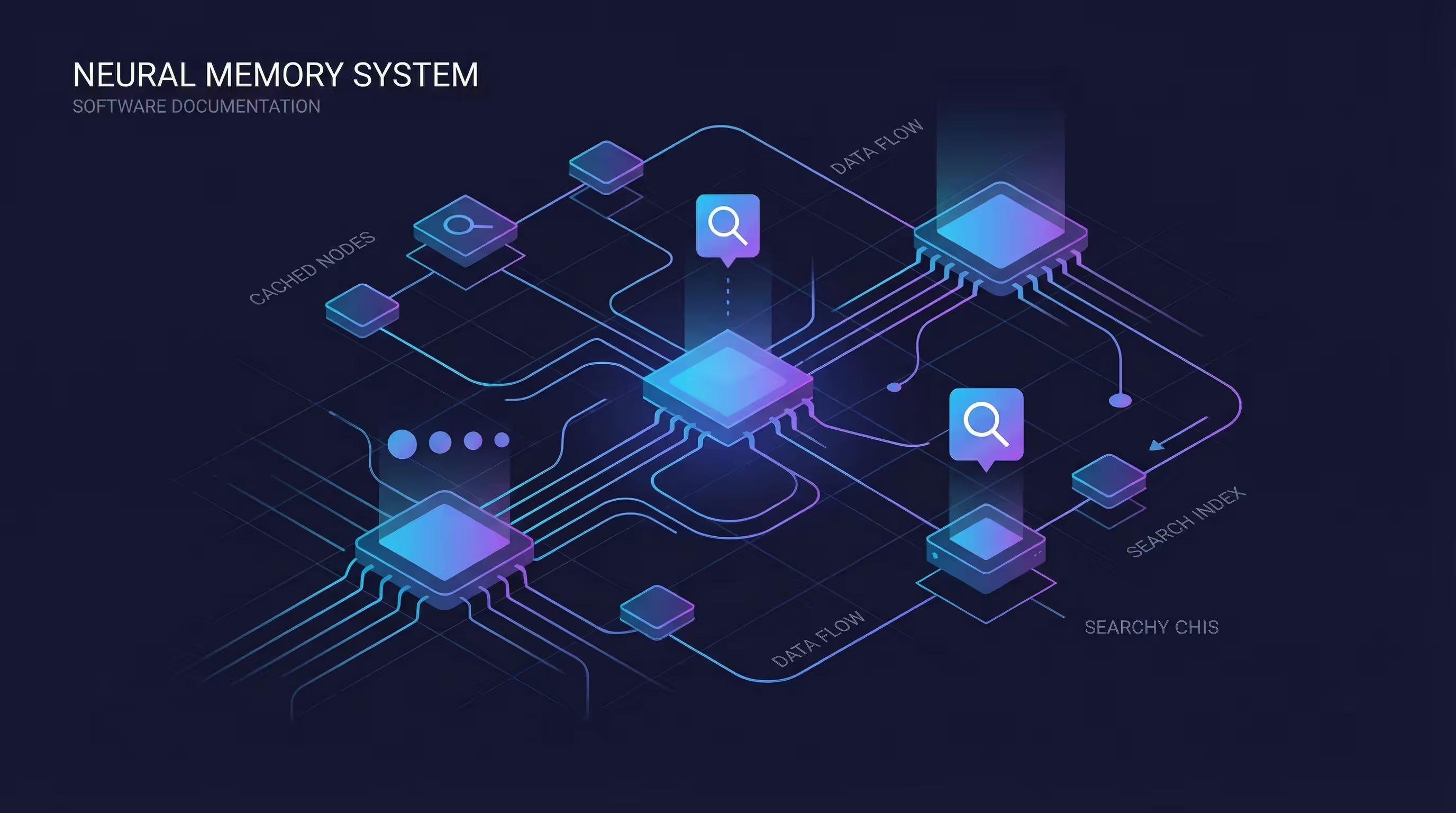
OpenClaw’s default memory system is fairly lazy. It often forgets context and forgets repeated actions it just performed yesterday. If you want OpenClaw to have a local, Chinese-friendly, multi-workspace shared memory system, QMD is a very practical option. qmd (Query Markup Documents) is a lightweight CLI search engine designed for local documents, knowledge bases, and meeting notes.
Based on the web content you provided, qmd (Query Markup Documents) is a lightweight CLI search engine built specifically for local documents, knowledge bases, and meeting notes.
The reason it is especially suitable for workflows built around OpenClaw or other AI agents comes down to these core features:
Output formats designed for agents: qmd provides native --json and --files output modes. That makes it easy for AI agents to parse results and get structured data such as document IDs, paths, and relevance scores, so they can decide more precisely which files to pull into context next.
High-quality hybrid search architecture: To give LLMs the most relevant context possible, qmd uses a state-of-the-art search pipeline:
- BM25 full-text search: fast keyword matching.
- Vector semantic search: uses the
embeddinggemmamodel to understand user intent. - Query expansion: uses the fine-tuned
qmd-query-expansionmodel to expand the original question and improve recall. - Reranking: uses
qwen3-rerankerto rescore the first 30 candidate documents so the best matches rise to the top.
The “context tree” feature (context management): This is one of qmd’s strongest features. You can attach descriptive context text to different folders or collections.
For example, add the context “personal thoughts” to the
~/notesdirectory. When an agent retrieves a document from that directory, qmd also returns that background note, helping the LLM understand the origin and purpose of the document better.
Fully local operation with MCP support: All models—embedding, reranking, and query expansion—run locally through node-llama-cpp, so no network connection is needed and private documents stay private. It also supports Model Context Protocol (MCP), which means it can plug directly into MCP-compatible AI clients such as Claude Desktop or Claude Code.
Core configuration logic
- Vector backend: QMD (Query Markup Documents)
- Chinese enhancement:
Qwen3-Embedding-0.6B-Q8_0.gguf - Auto sync:
fswatchmonitors Markdown file changes - Shared across multiple workspaces: mapped through
memory.qmd.paths
Step 1: Install dependencies
brew install sqlite fswatchpnpm add -g @tobilu/qmdqmd --versionwhich qmdIf qmd cannot be found, make sure your PATH includes:
/Users/a66/Library/pnpmYou can add this to ~/.zshrc:
export PATH="/Users/a66/Library/pnpm:$PATH"source ~/.zshrcStep 2: Download the Qwen3 Chinese embedding model
echo 'export PATH="/Users/a66/Library/Python/3.9/bin:$PATH"' >> ~/.zshrcsource ~/.zshrcpip3 install modelscopemkdir -p ~/.openclaw/modelsmodelscope download --model Qwen/Qwen3-Embedding-0.6B-GGUF qwen3-embedding-0.6b-Q8_0.gguf --local_dir ~/.openclaw/models/qwen3_repoecho 'export QMD_EMBED_MODEL="/Users/a66/.openclaw/models/qwen3_repo/Qwen3-Embedding-0.6B-Q8_0.gguf"' >> ~/.zshrcsource ~/.zshrcStep 3: Make sure QMD itself runs first
Don’t rush into watcher setup yet. Confirm the core QMD process works first:
qmd updateqmd embedThe most common trap: better-sqlite3 / Node ABI mismatch
If you see an error like this:
better_sqlite3.node was compiled against a different Node.js versionthat means your Node version changed, but the native module was never rebuilt.
Fix it like this:
cd /Users/a66/Library/pnpm/global/5/.pnpm/better-sqlite3@11.10.0/node_modules/better-sqlite3npm rebuild better-sqlite3Then test again:
qmd updateqmd embedIf the output is:
✓ All collections updated.✓ All content hashes already have embeddings.then the problem is gone.
Step 4: Deploy the real-time sync service (fixed version)
You can use the version below: it has logs, debounce logic, and a single-instance lock.
cat <<'EOF' > ~/.openclaw/qmd-watch-sync.sh#!/bin/bashset -u
MONITOR_DIR="/Users/a66/.openclaw"LOG_FILE="/Users/a66/.openclaw/qmd-sync.log"LOCK_DIR="/tmp/com.a66.openclaw.qmdsync.lock"DEBOUNCE_SECONDS=3QMD_BIN="/Users/a66/Library/pnpm/qmd"
export PATH="/Users/a66/Library/pnpm:/opt/homebrew/bin:/usr/local/bin:$PATH"export QMD_EMBED_MODEL="/Users/a66/.openclaw/models/qwen3_repo/Qwen3-Embedding-0.6B-Q8_0.gguf"FSWATCH_BIN="$(command -v fswatch)"
log() {  printf '[%s] %s\n' "$(date '+%Y-%m-%d %H:%M:%S %Z')" "$*" >> "$LOG_FILE"}
cleanup() {  rmdir "$LOCK_DIR" 2>/dev/null || true}
if ! mkdir "$LOCK_DIR" 2>/dev/null; then  log "⚠️ 已有 qmdsync 实例在运行,当前实例退出。"  exit 0fitrap cleanup EXIT INT TERM
if [[ -z "${FSWATCH_BIN:-}" ]]; then  log "❌ 找不到 fswatch,qmdsync 无法启动。"  exit 1fi
if [[ ! -x "$QMD_BIN" ]]; then  log "❌ 找不到 qmd 可执行文件:$QMD_BIN"  exit 1fi
run_sync() {  log "📝 检测到 Markdown 变动,开始更新 QMD 索引。"
  if "$QMD_BIN" update >> "$LOG_FILE" 2>&1 && "$QMD_BIN" embed >> "$LOG_FILE" 2>&1; then    log "✅ QMD 同步完成。"  else    local status=$?    log "❌ QMD 同步失败,退出码:$status"    return $status  fi}
log "🚀 OpenClaw QMD 自动同步服务已启动。监控目录:$MONITOR_DIR"
last_run=0while read -r _; do  now=$(date +%s)  if (( now - last_run < DEBOUNCE_SECONDS )); then    log "⏳ 触发过于频繁,${DEBOUNCE_SECONDS}s 内合并处理。"    continue  fi  last_run=$now  run_syncdone <("$FSWATCH_BIN" -o -r -i '.*\.md$' "$MONITOR_DIR")EOF
chmod +x ~/.openclaw/qmd-watch-sync.sh
Step 5: Configure LaunchAgent
Create:
~/Library/LaunchAgents/com.a66.openclaw.qmdsync.plist
<?xml version="1.0" encoding="UTF-8"?><!DOCTYPE plist PUBLIC "-//Apple//DTD PLIST 1.0//EN" "http://www.apple.com/DTDs/PropertyList-1.0.dtd"><plist version="1.0"><dict>    <key>Label</key>    <string>com.a66.openclaw.qmdsync</string>
    <key>ProgramArguments</key>    <array>        <string>/bin/bash</string>        <string>/Users/a66/.openclaw/qmd-watch-sync.sh</string>    </array>
    <key>RunAtLoad</key>    <true/>
    <key>KeepAlive</key>    <true/>
    <key>StandardOutPath</key>    <string>/Users/a66/.openclaw/qmd-sync-stdout.log</string>
    <key>StandardErrorPath</key>    <string>/Users/a66/.openclaw/qmd-sync-stderr.log</string></dict></plist>
Load the service:
launchctl load ~/Library/LaunchAgents/com.a66.openclaw.qmdsync.plistIf you already have an older version, it is better to reload it:
launchctl unload ~/Library/LaunchAgents/com.a66.openclaw.qmdsync.plist 2>/dev/null || truelaunchctl load ~/Library/LaunchAgents/com.a66.openclaw.qmdsync.plistlaunchctl kickstart -k gui/$(id -u)/com.a66.openclaw.qmdsyncStep 6: Verify the watcher is actually working
launchctl print gui/$(id -u)/com.a66.openclaw.qmdsyncps aux | grep -i '[q]md-watch-sync\|[f]swatch'Run a real change test:
echo "<!-- qmd healthcheck -->" >> ~/.openclaw/workspace/HEARTBEAT.mdsleep 5tail -n 30 ~/.openclaw/qmd-sync.logStep 7: The QMD config inside OpenClaw
{ "memory": { "backend": "qmd", "qmd": { "includeDefaultMemory": true, "paths": [ { "name": "coach", "path": "/Users/a66/.openclaw/workspace-coach" } ], "update": { "interval": "5m", "onBoot": true } } }}7. Configure ACP
If you want a specific agent inside OpenClaw to connect directly to an external coding harness such as Codex, instead of only using OpenClaw’s built-in sub-agent runtime, then what you need is ACP.
What ACP is, and why not just use a sub-agent
Sub-agents are suitable for OpenClaw’s native delegation runtime, internal task splitting, and ordinary agent collaboration. ACP (Agent Client Protocol) is for handing work off to external harnesses such as Codex or Gemini CLI.
The target architecture we want
- OpenClaw main config file:
~/.openclaw/openclaw.json - Message channel: Feishu
- A dedicated Feishu bot account:
coder - The agent id inside OpenClaw is also:
coder - Change
coder’s runtime to ACP - Use
acpxas the ACP backend - Set the default harness to
codex - Set the permission policy to approve-all
Top-level ACP configuration
{ "acp": { "enabled": true, "dispatch": { "enabled": true }, "backend": "acpx", "defaultAgent": "codex", "allowedAgents": [ "pi", "claude", "codex", "opencode", "gemini", "kimi" ], "maxConcurrentSessions": 8, "stream": { "coalesceIdleMs": 300, "maxChunkChars": 1200 }, "runtime": { "ttlMinutes": 120 } }}Install and enable the acpx plugin
openclaw plugins install acpxEnable acpx in plugins and set fully automatic permissions
{ "plugins": { "allow": [ "feishu-openclaw-plugin", "google-gemini-cli-auth", "feishu", "acpx" ], "entries": { "feishu-openclaw-plugin": { "enabled": true }, "google-gemini-cli-auth": { "enabled": true }, "feishu": { "enabled": true }, "acpx": { "enabled": true, "config": { "permissionMode": "approve-all", "nonInteractivePermissions": "fail", "expectedVersion": "any" } } } }}Switch the coder agent to ACP + Codex
{ "id": "coder", "name": "coder", "workspace": "/Users/a66/.openclaw/workspace-coder", "agentDir": "/Users/a66/.openclaw/agents/coder/agent", "runtime": { "type": "acp", "acp": { "agent": "codex", "backend": "acpx", "mode": "persistent", "cwd": "/Users/a66/.openclaw/workspace-coder" } }}Keep the Feishu binding unchanged
{ "agentId": "coder", "match": { "channel": "feishu", "accountId": "coder" }}Apply the config and restart the gateway
openclaw gateway restartHow to verify ACP is really active
Important:
/acp doctoris a slash command inside an OpenClaw conversation- It is not a shell command
- Don’t type it directly into zsh unless you enjoy getting slapped by the terminal
The correct way is to run this inside OpenClaw chat:
/acp doctorHow to actually start a Codex session
/acp spawn codex --mode persistent --thread offTypical traps
Trap 1: Treating /acp doctor like a shell command
A beautifully simple mistake.
Trap 2: Configuring the agent but never enabling top-level acp
Then of course it will not magically become Codex.
Trap 3: Forgetting to enable acpx
Writing config without installing the plugin is just paperwork theater.
Trap 4: Permissions are too conservative
If you use approve-reads, it usually means the harness can read things, but not actually change them.
Trap 5: Stuffing the task prompt directly after /acp spawn
/acp spawn is a launch command, not a natural-language entry point.
8. This Final Troubleshooting Checklist Will Save You a Lot of Pointless Pain
The earlier sections were about how to build the setup. This section is about why it still refuses to run stably even when you followed the steps. If you hit problems later, don’t rush to assume you forgot some command. More often, the issue is not that you “don’t know how to install it,” but that these details are landmines by default.
pnpm cannot be found inside the daemon
Check first whether ProgramArguments in the LaunchAgent uses absolute paths.
Native module installation failure
pnpm approve-builds -gAlso make sure script execution is not disabled.
GitHub SSH timeout
Prefer ssh.github.com:443, and confirm the proxy port matches your local machine.
Environment drift
Before each work session, run:
node -v && pnpm -v && openclaw --versionOpenClaw upgrade errors when using the official Feishu plugin
If you see:
pnpm add -g openclaw@latestENOENT ENOENT: no such file or directory, open '/tmp/feishu-openclaw-plugin-onboard-cli.tgz'handle it like this:
pnpm rm -g @lark-open/feishu-plugin-onboard-clipnpm add -g openclaw@latestgateway restart timeout
If you see something like:
Timed out after 60s waiting for gateway port 18789 to become healthy.Gateway restart timed out after 60s waiting for health checks.check these first:
- whether the port is already occupied
- whether the LaunchAgent is loaded correctly
- whether PATH is missing entries and causing daemon startup failure
- whether plugin upgrades left behind conflicting config
11. Final Note: Who Should Copy This Whole Setup, and Who Shouldn’t
If you made it this far, you have probably already noticed that what this article actually solves is not “how to install OpenClaw,” but how to install it as a system that can keep working over time.
Those are two very different things.
The first one only requires lighting up the interface. The second requires cleaning up PATH, daemons, plugins, routing, permissions, and the memory system. And the parts that really torture people are exactly those second-order details.
People who should copy this article directly
- You are configuring OpenClaw from scratch on a new Mac
- You plan to use it long term instead of just playing with it for two days
- You will connect Feishu, maybe even use multiple bots and multiple agents
- You want to add advanced capabilities such as QMD, ACP, and Codex
- You do not want to debug “it worked yesterday, why is it broken today?” every few days
People who should not copy the whole thing on day one
- You only want to try OpenClaw first
- You do not need Feishu, multi-agent setups, QMD, or ACP yet
- You want to get the smallest usable version running first, then add capabilities gradually
In that case, start with the minimum viable loop:
- Homebrew
- fnm / Node LTS
- pnpm
- OpenClaw
- Basic onboarding
Get that working first, then layer more on top slowly. If you try to eat the whole thing in one bite, you will just choke on it.
What is actually hard about OpenClaw has never been “installation.” It is avoiding turning it into a half-finished system that looks functional while landmines are buried everywhere.
If all you want is to light it up, almost any tutorial online is enough. But if you want to turn it into personal infrastructure that works stably over the long term, sooner or later you will come back to all this dirty work anyway.
So instead of patching holes later, build the foundation correctly from the start.
That is the part I felt most worth writing down after reinstalling it five times.
게시일: 2026년 3월 10일 · 수정일: 2026년 3월 10일